
Summary
To show products on Google Shopping, create a free Google Merchant Center account, verify your website, set up shipping for each country you sell to and connect your catalogue through platform sync (WooCommerce, Shopify, PrestaShop) or a file. Free listings are on by default; Shopping ads need Google Ads. Disapproved products appear nowhere.
- Google Merchant Center costs nothing, and free listings are switched on by default in new accounts.
- In the UK, Netherlands, Austria, Denmark and Finland, shipping settings are required for products to be eligible.
- A disapproved product appears in neither free listings nor Shopping ads: zero sales from that channel.
- Fix account-level policy risks first, then errors on your best-selling products.
- Feed quality drives both free visibility and the profitability of paid Shopping campaigns.
Google Merchant Center is Google’s free platform where your online shop sends its product catalogue so items can appear on Google Shopping, Search, Images, YouTube and Maps. To get there, you create an account, verify your website, set up shipping for each country and connect your catalogue. Free listings are switched on by default.
For most retailers the hard part is not opening the account. It is discovering weeks later that half the catalogue is disapproved, that product variants never show, or that the account has been suspended with no clear explanation. Meanwhile, competitors appear with image and price at the top of the results, and your sales from that channel simply do not happen. Nobody in the team has time to decode Google’s error messages.
This guide brings together what Google’s official documentation spreads across dozens of help pages: setup, free listings, fixing disapproved products and the step up to paid campaigns, with an order of priority based on revenue impact and the European context (shipping, local listings and CSS).
What is Google Merchant Center and what is it for?
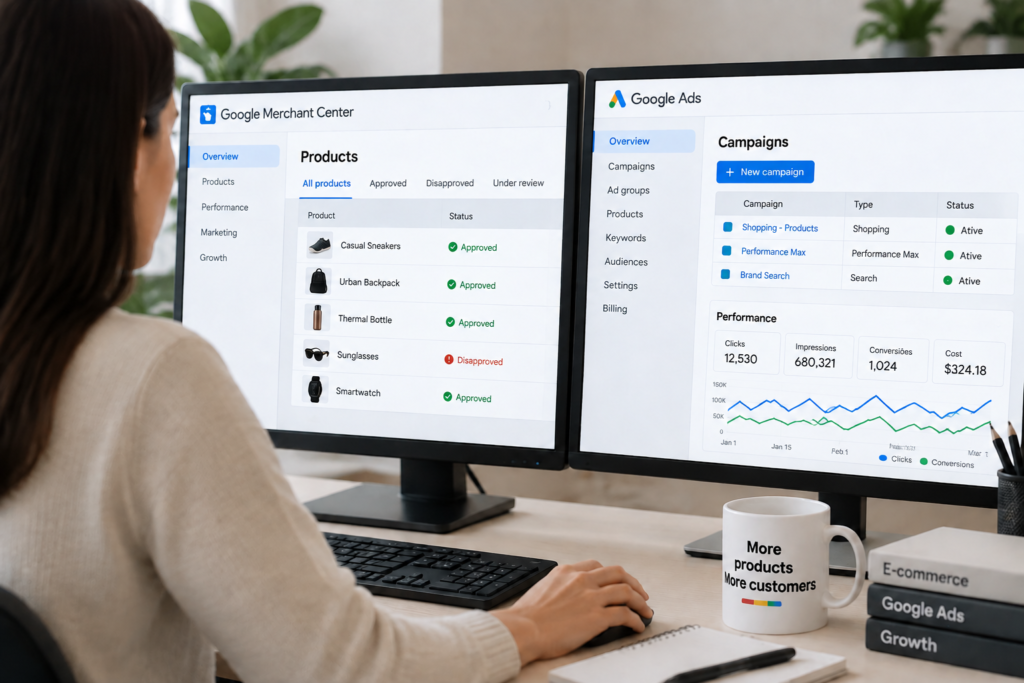
Google Merchant Center is the dashboard where a shop manages the product information Google shows to buyers: title, description, price, image, availability, shipping and identifiers such as the GTIN (the product’s barcode number). That set of data is called the product feed.
According to Google’s help documentation, approved products can appear on Search, Google Images, Google Lens, YouTube, Gemini, Google Maps, the Shopping tab and your Business Profile. The same feed powers free visibility as well as Shopping ads and Performance Max campaigns in Google Ads.
In business terms, Merchant Center is the shop window for your catalogue inside Google. If the window shows wrong data, Google takes the products off display.
Is Google Merchant Center free?
Yes. Google Merchant Center has no cost, and Google Shopping free listings are active by default in new accounts. You only pay if you choose to advertise through Google Ads, where you pay per click.
Set realistic expectations, though: Google itself states that being eligible does not guarantee your products will be shown. Free exposure depends on relevance, data quality and competition.
| Criterion | Free listings | Shopping ads / Performance Max |
|---|---|---|
| Cost | None | Pay per click, via Google Ads |
| Where they appear | Shopping tab, Search, Images, YouTube, Maps and more | Ad positions at the top of Search, Shopping and the Google network |
| Control | Low: Google decides when to show | High: budget, priority products, markets, schedules |
| Predictability | Variable | Measurable by cost per sale and ROAS |
| When to use | Always, as the foundation | Once the feed is clean and margins allow investment |
ROAS (return on ad spend) is the revenue generated for every euro or pound spent on advertising. With a poor feed, that figure deteriorates, because Google matches your products to the wrong searches.
Why are my products not showing on Google Shopping through Google Merchant Center?
In most cases products do not show for one of three reasons: they are not eligible (account, shipping or policies), they have been disapproved because of feed errors, or they are eligible but the data is too weak to compete. Use this list to diagnose your own situation:
- Shipping is not configured in Google Merchant Center. In the UK, the Netherlands, Austria, Denmark and Finland, shipping settings or the [shipping] attribute are required, as explained in Google’s product data specification.
- Price or availability in the feed does not match the website. Google disapproves products when feed data and the product page disagree.
- Products are sitting in the “Needs attention” tab in Google Merchant Center and nobody has reviewed them recently.
- Only products with variants (sizes, colours) are failing, which usually points to how your plugin or platform exports variants, an issue highlighted in Google’s 2026 product specification updates.
- Images carry promotional text, watermarks or borders. Check Google’s current image requirements before resubmitting.
- The website does not clearly show contact details, returns policy, terms and shipping costs, which raises the risk of suspension.
- Titles are generic (“Model X23”) instead of describing what customers actually search for.
If two or more of these apply, you are probably losing sales every day without it appearing in any report.
How to get products on Google Shopping: step by step
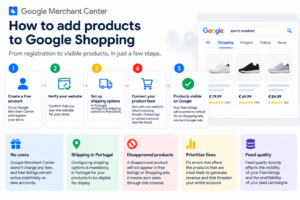
The process has six steps and, on a well-structured shop, the basic setup needs no coding.
- Create the Google Merchant Center account with a company email address (not an employee’s personal one) and complete the business details.
- Verify and claim your website to prove to Google that the shop is yours in Google Merchant Center, following Google’s verification and claiming process.
- Set up shipping for every country you sell to, with real costs in the local currency and real delivery times.
- Connect your catalogue to Google Merchant Center. There are three main routes: automatic sync with your platform (WooCommerce, Shopify, PrestaShop), automatic product discovery through schema.org structured data on your product pages, or a file upload (spreadsheet or Google Sheets).
- Confirm free listings are active and, if you have a physical shop, consider free local listings, which are available in the UK, the Netherlands, Austria, Denmark and Finland.
- Review diagnostics over the following days and deal with disapproved products before thinking about ads.
For WooCommerce shops, plugin sync is the most practical method, but it is also where variant errors and outdated prices tend to appear. Structured data, meanwhile, does two jobs at once: it feeds Merchant Center and supports rich results with price and availability in organic search, which is part of a sound SEO and generative search strategy.
The Feed → Visibility → Sales method
To decide where to put time and money, organise the work into three layers. Each layer only pays off once the previous one is solved.
Layer 1: Eligibility
This is the foundation: a verified account, shipping configured for each market and a website that complies with Google’s policies. If this layer fails, no product appears. It is one-off work, usually for the owner or whoever manages the website.
Layer 2: Approval
This is the triage of disapproved products. The rule is simple: a disapproved product is worth zero sales in this channel, so fix the ones that sell most first. It needs regular review, because every price or stock change can trigger new errors.
Layer 3: Performance
This is where Google Shopping feed optimisation wins the competition: titles with the words customers search for (brand, product type, key attribute), clean images on a neutral background, correct GTINs and competitive prices. This layer directly affects free exposure and your cost per sale in ads.
Google Merchant Center product disapproved: which errors to fix first?
Fix errors that put the whole account at risk first, then those affecting your highest-revenue products. A policy problem can take every product offline at once; an error on a slow-moving item can wait a week.
| Typical error | Likely cause | Fix | Who fixes it | Business impact |
|---|---|---|---|---|
| Misrepresentation or policy violation | Unclear contact, returns or shipping information on the site | Review legal pages, contact details and checkout | Owner / agency | Critical: whole account suspended |
| Price mismatch | Outdated feed, promotions not synced | Increase sync frequency, align structured data | Developer | High: products offline |
| Availability mismatch | Stock changed on the site but not in the feed | Automatic stock sync | Developer | High |
| Missing shipping | No shipping settings for that country | Configure shipping in Merchant Center | Owner | High: all products in that country |
| Variants disapproved | Plugin exports variants without a group ID or their own attributes | Fix the variant export | Developer / agency | Medium to high |
| Image with promotional text | Logos, discount badges or borders | Replace with a clean image | In-house team | Medium |
| Invalid or missing GTIN | Code entered wrongly or not provided | Add the manufacturer’s code | In-house team | Medium: lower exposure |
The fix workflow inside Merchant Center is always the same: open Products, go to the “Needs attention” tab, filter by issue type, download the list as a CSV, correct the data at source (shop or feed) and resubmit. Fixing only inside Merchant Center, without changing the shop, brings the error back at the next sync.
If you are not sure where to start, onOrbit Marketing offers a free diagnosis of your feed and Merchant Center account, with a list of fixes ranked by impact.
What happens if my Merchant Center account is suspended?
If a review finds policy non-compliance, Google suspends the account immediately and every product stops appearing, free and paid. Misrepresentation is a common reason. Recovery means fixing the cause on the website and requesting a new review; repeated requests without a real fix slow things down. That is why the eligibility layer comes first.
10 checks before you submit your feed to Google Merchant Center
- Website verified and claimed in Merchant Center.
- Shipping configured for every country you sell to in Google Merchant Center.
- Feed prices identical to the product page, including VAT, currency and promotions, in line with the Merchant Center product data specification update.
- Stock synced automatically between your platform and Google Merchant Center.
- Contact details, returns policy and terms visible on the site.
- Secure, working checkout with no payment errors.
- Images free of promotional text, watermarks or borders.
- Descriptive titles with brand, product type and key attribute.
- Correct GTIN on products that have one, in line with the updated product ID requirements for 2026.
- Variants exported as individual products, grouped correctly in Google Merchant Center.
Many of these points overlap with a technical review of your online shop. If the problems start in the store itself, a properly structured e-commerce setup removes most feed errors at the root.
Do I need Google Ads, or are free listings enough?
Free listings are the essential starting point, but they give you no control over when and to whom your products appear. Adding Shopping ads or Performance Max makes sense when three conditions are met: the feed is clean, you know the margin of each category, and you can measure sales per campaign.
In Europe, measurement has a GDPR dimension: conversion tracking depends on visitors’ cookie consent, so a correctly configured consent banner and tracking setup are part of knowing whether ads pay. Without them, reported sales will be incomplete.
The most common objection is cost, often made worse by past agencies that spent budget without showing results. The way to reduce that risk is to start small: one campaign with only your best-margin products, a capped budget and cost-per-sale reporting from the first month.
What is a CSS and do I need one in Europe for Google Merchant Center?
A CSS (Comparison Shopping Service) is a price-comparison service that, in the European Union, can place products on Google Shopping on a retailer’s behalf. It matters if you sell into the Netherlands, Austria, Denmark or Finland. For free listings, you can only choose one CSS, so make that decision deliberately before expanding across markets.
How onOrbit Marketing can help
onOrbit Marketing is a Portugal-based agency working with online shops across Europe, with an English-speaking team in the same time zone as the UK. We help retailers keep their catalogue visible and profitable on Google without tying up their team decoding errors. We apply our process to your feed:
- Diagnosis: review of your Merchant Center account, disapproved products, suspension risks and the connection to your shop platform.
- Strategy: fixes ranked by revenue impact, per market, and a clear decision on when to move into ads.
- Implementation: correcting the feed, structured data, shipping and sync, with our web development team.
- Optimisation: ongoing monitoring and, where it makes sense, Google Ads management with cost-per-sale reporting.
You get a stable feed, a clear plan and metrics you can read without jargon.
Frequently asked questions
Can I advertise services on Google Merchant Center?
No. Google Merchant Center and Google Shopping accept products only, with a defined price and availability, not services such as consultancy, treatments or training. Service businesses should rely instead on Google Ads search campaigns, a well-maintained Google Business Profile and local SEO to generate enquiries in a measurable way, tracking cost per lead rather than cost per sale.
What are Google Merchant Center free local listings and where are they available?
Free local listings show products in stock at a physical shop to people searching nearby, for example on Google Maps and your Business Profile. They are available in the UK, the Netherlands, Austria, Denmark and Finland, among other countries, and require sending each shop’s local inventory to Merchant Center. They suit retailers with physical stores who want to attract customers looking for a product urgently.
Why are only my products with variants being disapproved in Google Merchant Center?
When only products with sizes or colours fail, the cause is usually how your platform or plugin exports variants: a missing item group ID, price or stock shared incorrectly, or the same image for every variant. The fix belongs in the shop’s export settings, not in Merchant Center, so that each variant arrives with its own consistent data and passes Google’s checks.
Once I fix the errors, will my products appear on Google straight away?
There is no guaranteed timeframe or exposure. After you resubmit, Google reviews the products and, if approved, they become eligible again. Google’s own documentation states that eligibility does not guarantee products will be shown: exposure depends on relevance, the quality of titles and images, price and the competition for each search, so performance work continues after approval.
Should I hire a Google Shopping agency or manage the feed in-house?
In-house works if someone has regular time to monitor diagnostics, understands your platform’s feed export and can make site changes quickly. An agency makes sense when disapprovals keep returning, you sell in several countries, or you plan to invest in Shopping ads. Choose a provider that shows the diagnosis in writing, prioritises fixes by revenue and reports cost per sale transparently.
Are your products actually visible on Google?
Book a free consultation and we will review your Google Merchant Center account and product feed. You receive a clear list of the errors costing you sales, ranked by impact and market, plus an honest view on whether Shopping ads make sense for you yet.

Alona Stepanova
CEO of onOrbit Marketing | Web Developer & Specialist in E-commerce Growth. Helps SMEs and online stores in Portugal and across Europe grow with web development, SEO, GEO and digital marketing.